
PEPSI OT Example
This example will demonstrate how to build a PEPSI Observation using the PEPSI Library Templates.
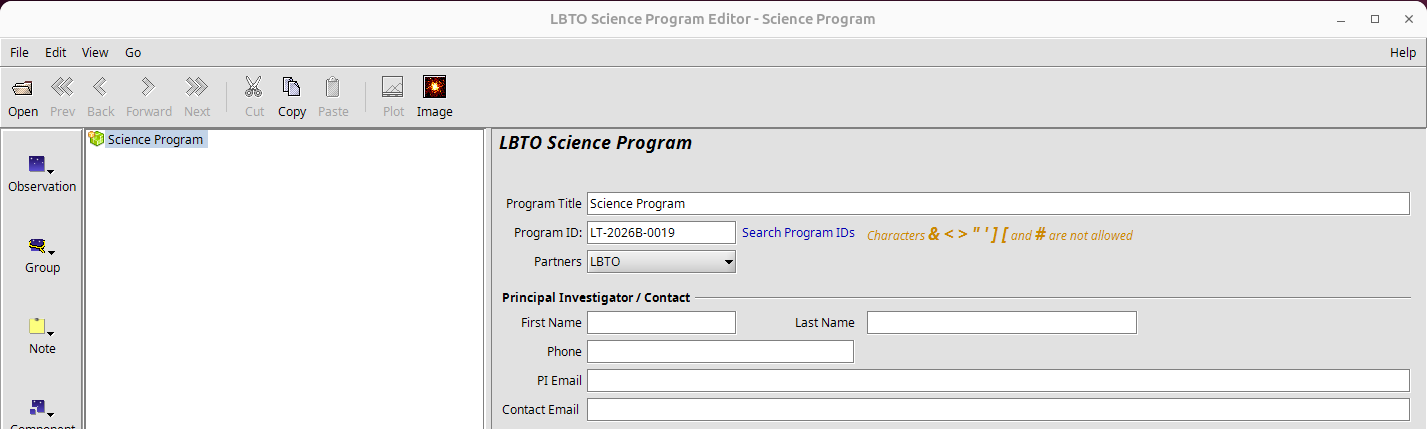
As with any example, start by opening a New Program. The new Science Program will open to the Main Program Node or Tab. It is here that you can fill out necessary information, such as your name, e-mail, and LBTO partner. It is important that the Program ID is 13 characters or less, otherwise the PropID FITS header entry will be truncated.
Pro Tip 1: Some of this information may be critical to identifying your data for later retrieval from the archive, so do not overlook this section.
Once the Science Program/PI information has been filled out, import the PEPSI Science Library into the OT so that you can copy and paste already built templates into your Science Program. To import the library, ensure you have a copy of the PEPSI Science Library saved to your local directory. Use the Main Menu to navigate to File –> Import xml. From there a dialog box will appear.
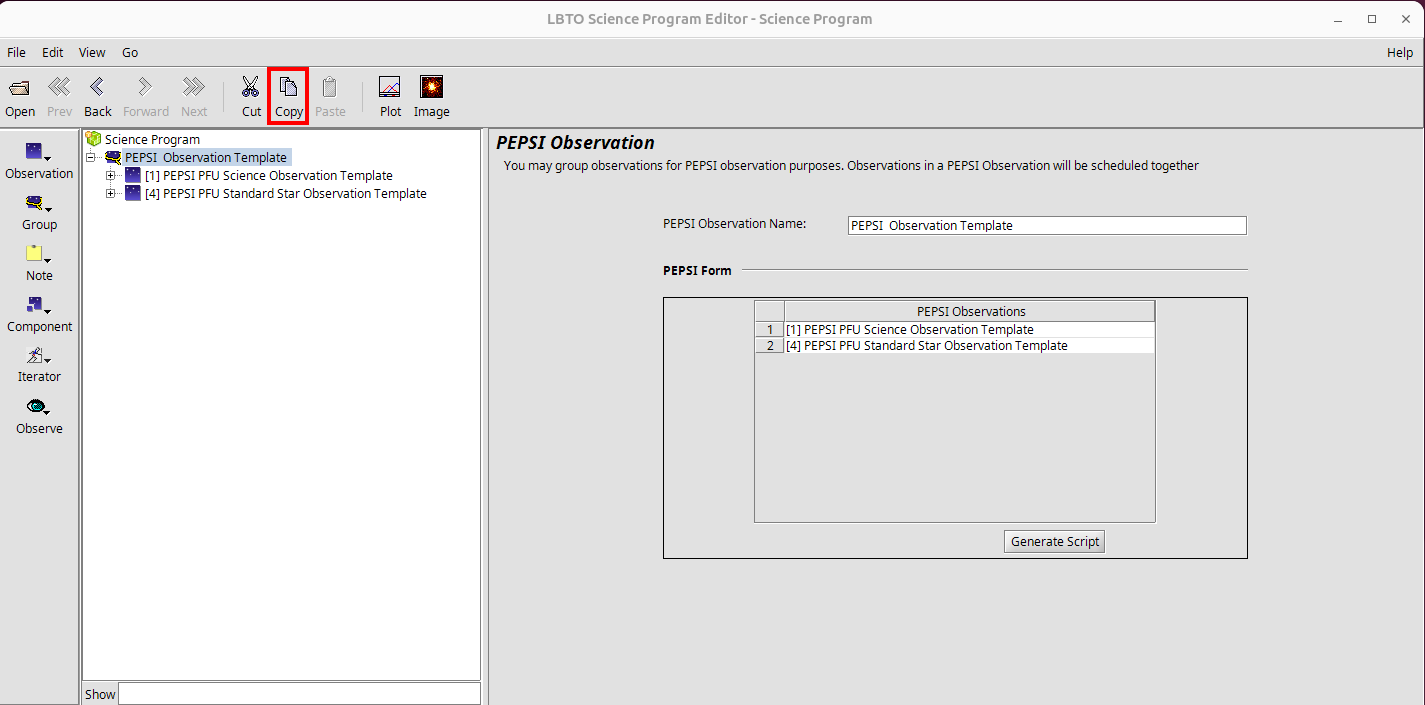
The PEPSI Library will open in a new OT window. Highlight the PEPSI Observation Template Group and then click COPY in the Main Toolbar. Be sure the Group is copied, and not the individual Observation Element, as the Group is how the OT generates the script that contains the individual Observation Elements.
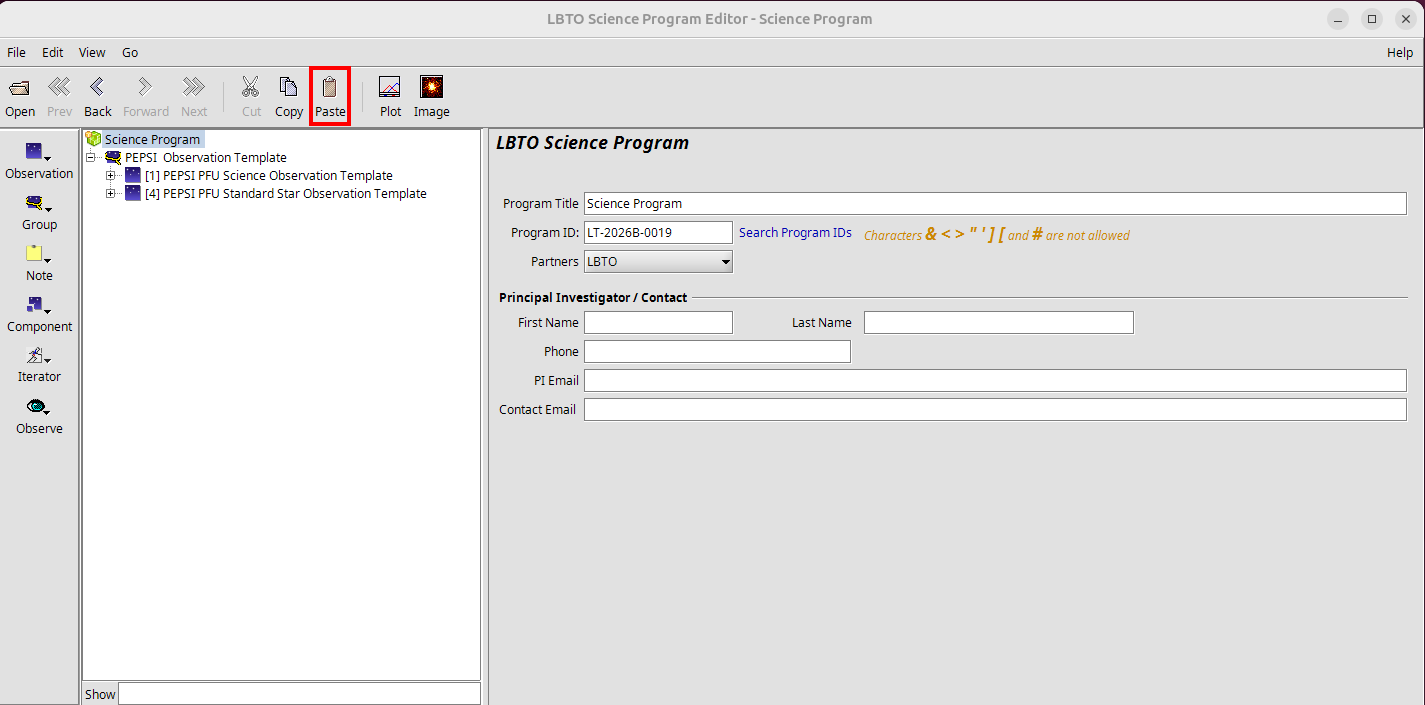
Back in the *empty* Science Program PASTE the Group by hitting PASTE in the Main Toolbar.
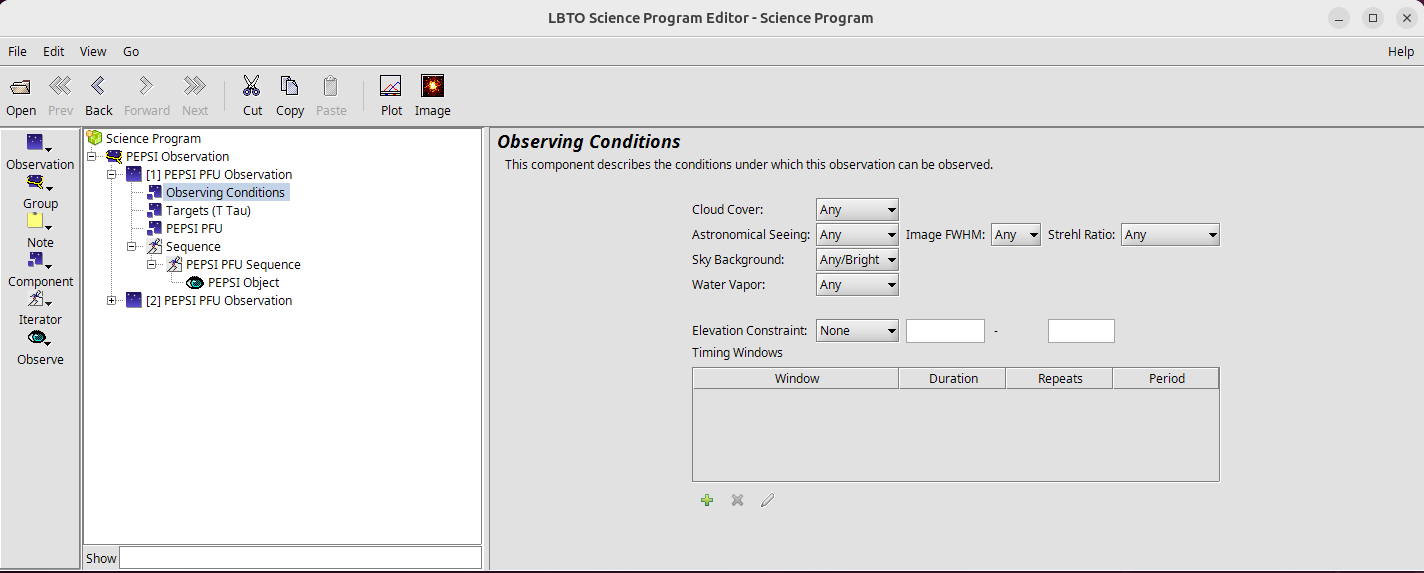
Tailor the template with your observation details following the tree of the Observation in the template:
- Observing Condition Element: Complete the information in the Observation Conditions Element by selecting the nodes that roughly align with what was requested in your TAC proposal. Only the Sky Background, Seeing, and Cloud Cover are passed to the script.
Pro Tip 2: Since the observing conditions information are not fully passed along in the Observing Scripts, it is important to not only pass along your complete scripts but this complete OT Program as well to LBTO and the Partner Coordinator. Details for exporting the OT are available here.
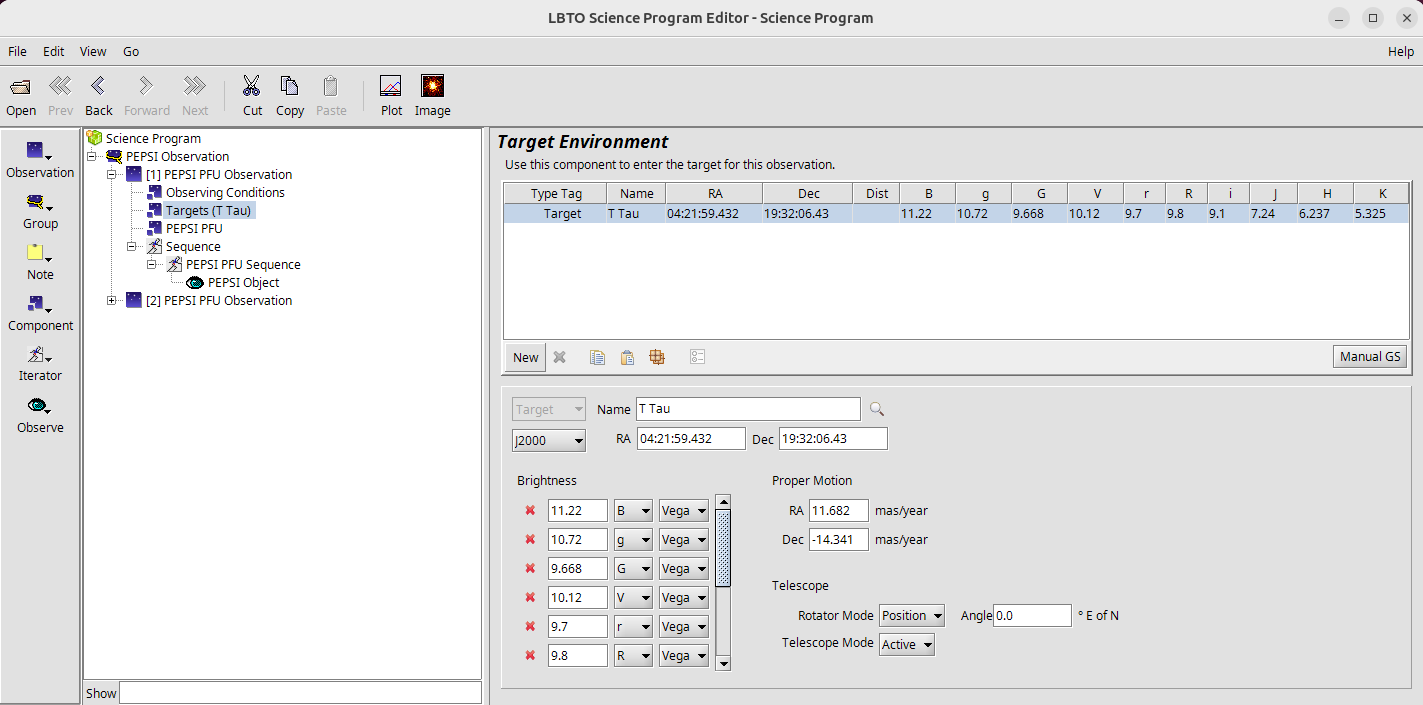
- Target Element: You may type a valid SIMBAD Target Name and hit enter; if recognized, the coordinate field, magnitudes, and proper motion will populate. Alternatively, you may manually type in your Target Name, Coordinates, Brightnesses, and Proper Motion.
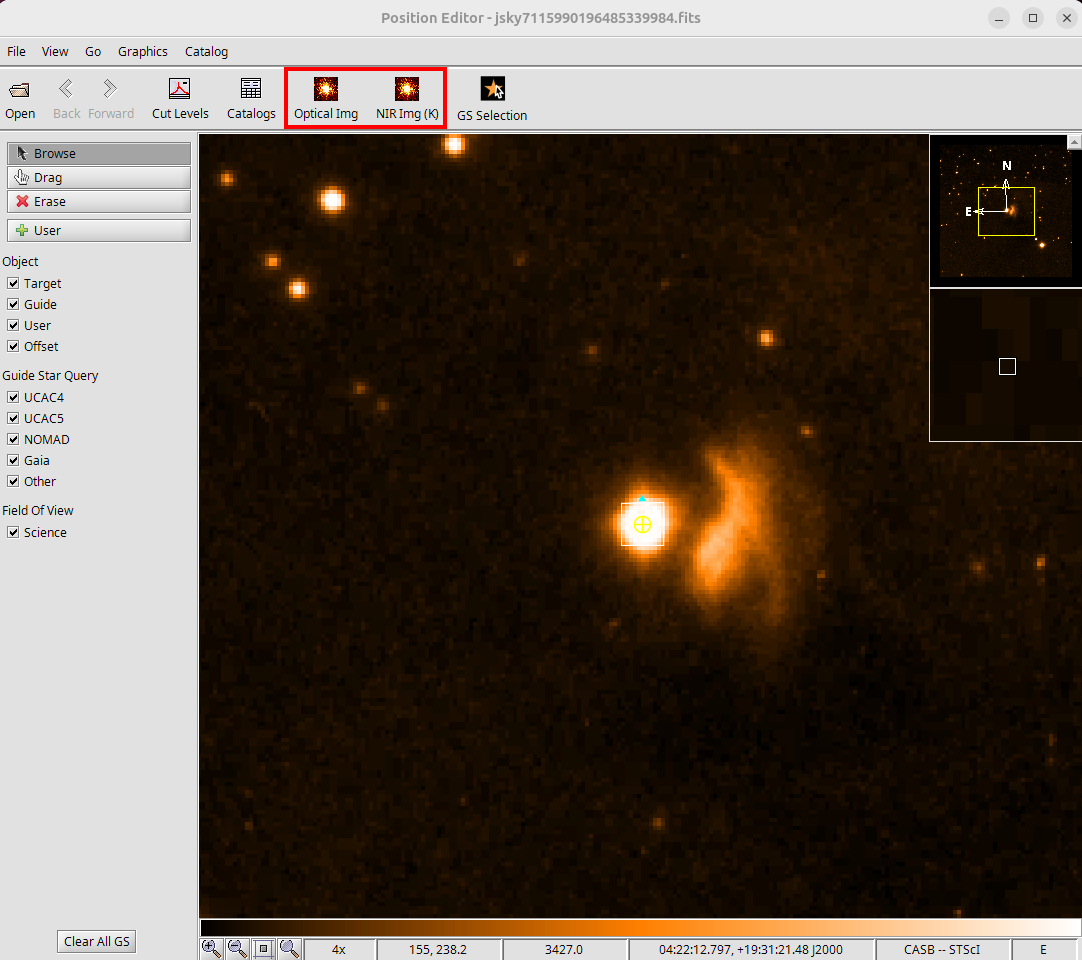
Click on the Image button in the Main Toolbar to bring up the Position Editor. The Position Editor will allow you to visualize the Target and Science Fields of View. To bring up a default catalog image in the Position Editor, click on Optical Img (for a visual band image) or NIR Img (K) (for a K-band image) in the Main Toolbar in the Position Editor.
- PEPSI Instrument Element: This element will define the initial configuration of the instrument. Set the image slicer, use of the Fabry Perot, cross disperser (CD) pairs, exposure times, number of exposures, and desired SNR (calculated from the PEPSI Exposure Time Calculator) for the initial instrument configuration, filling in the fields and nodes. An SNR >1700 is affected by the accuracy of the master flat fields and other calibrations.
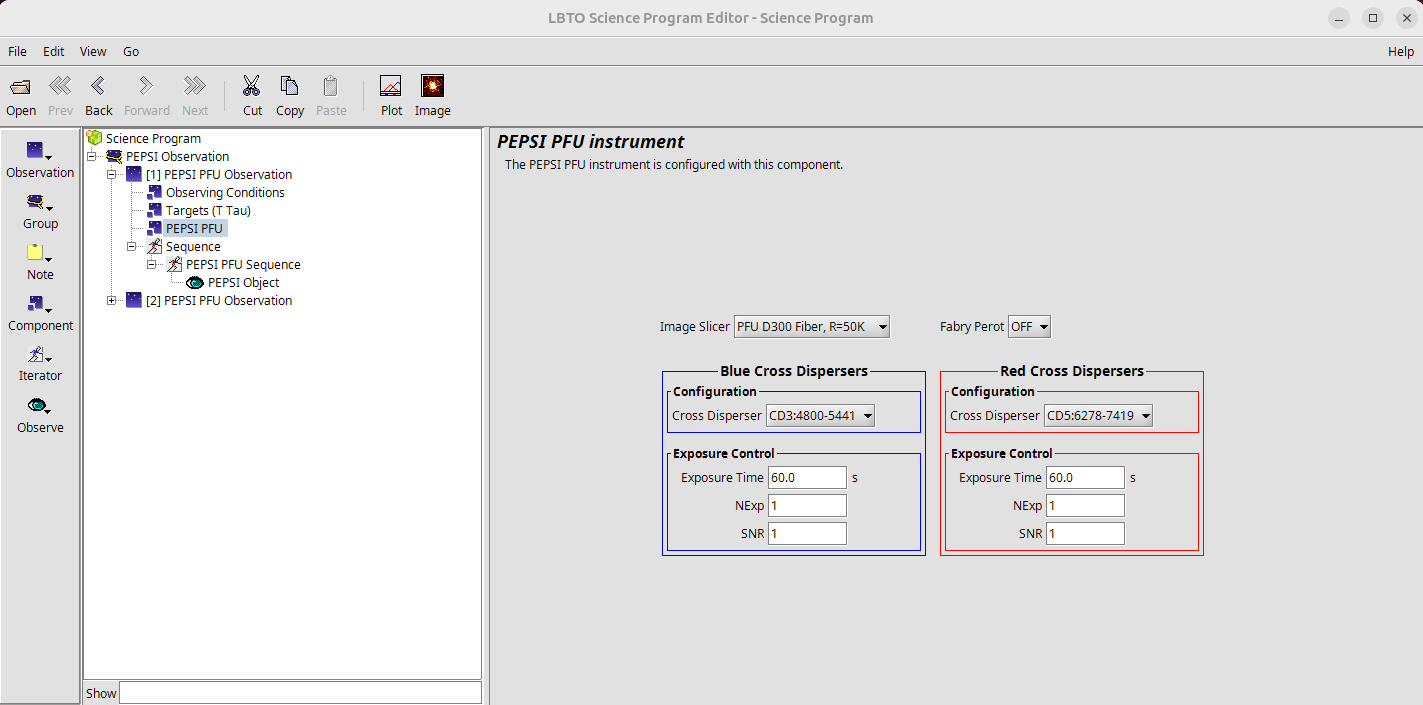
These can be adjusted for exposures beyond the first exposure in the sequence tab.
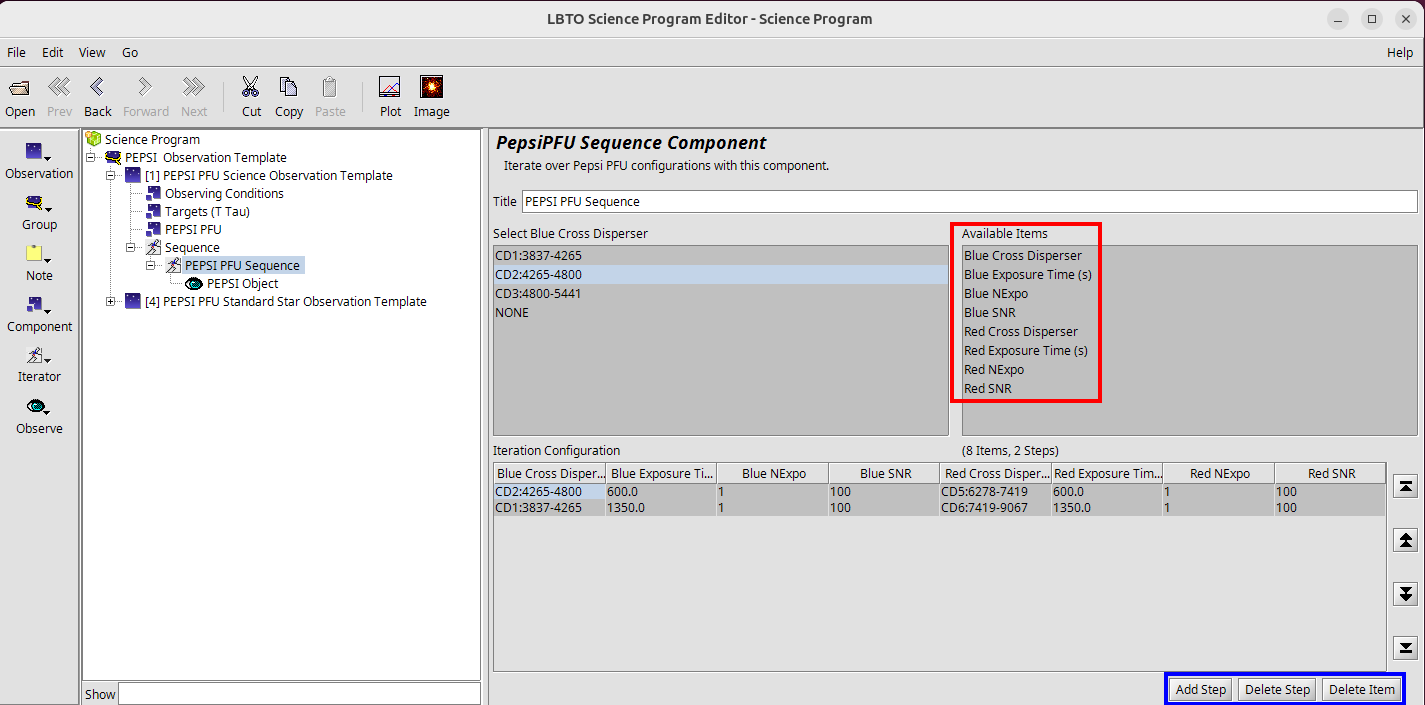
- Sequence Element: The PEPSI Sequence is composed of two components: the PEPSI Sequence Iterator and the Observe Type. The Sequence Iterator allows the user to adjust the CDs, exposure times, number of exposures, and SNR of each the red and blue arms of the instrument. The values for the items of each iterator step will default to the values set in the PEPSI Instrument Element if not changed in the Sequence Iterator.
Pro Tip 3: Ensure that the total time (exposure time, number of exposures, readout overheads) is close to the same for the red and blue arms of the instrument to optimize observational efficiency.
The Delete Step button can be used to remove any lines in the existing iteration configuration, and the Add Step button can add a new line to the iteration configuration. Clicking on items in the Available Items section will allow the user to alter that item in the iteration configuration (either highlighting that item in the iteration configuration or making it visible if not already), opening a menu or field to the left of that Available Items section. Details can be found at PEPSI Sequence Iterator.
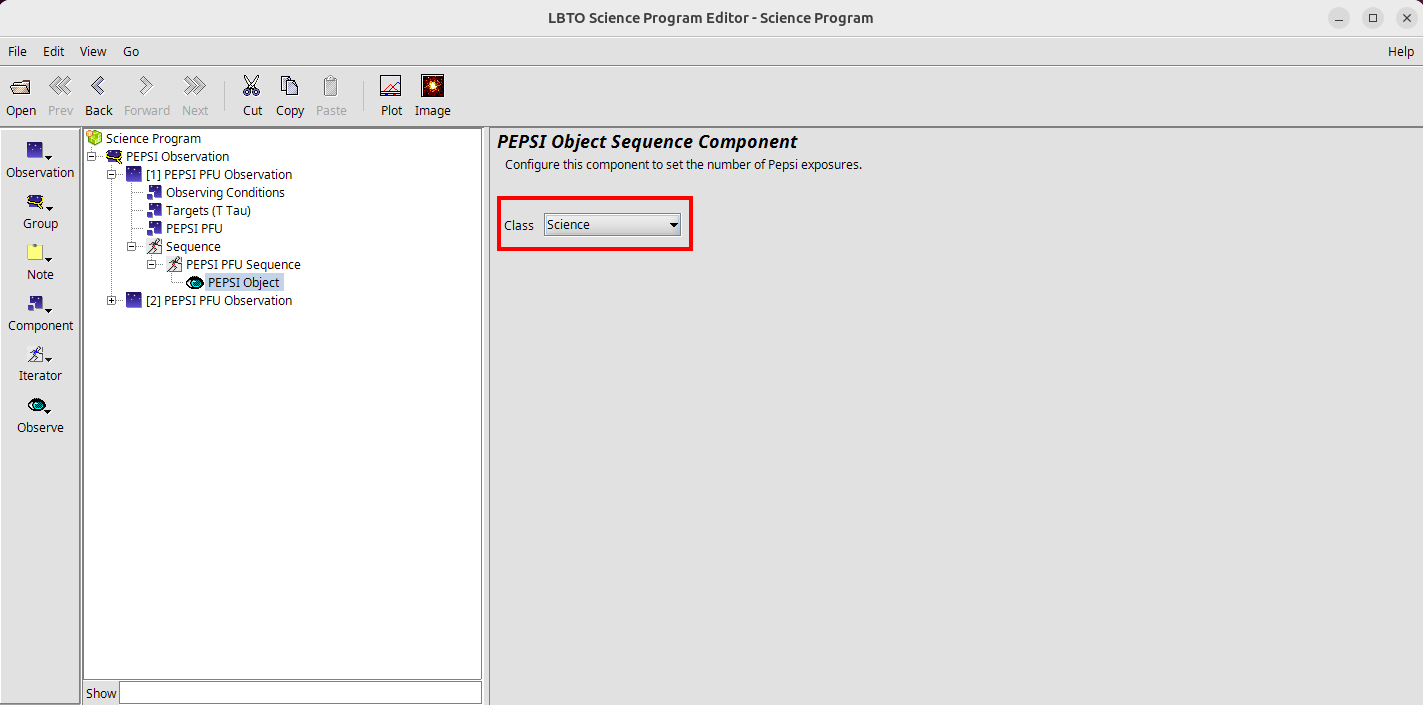
Observe Type: For Science Observations this will always be set to PEPSI Object, Class Science.
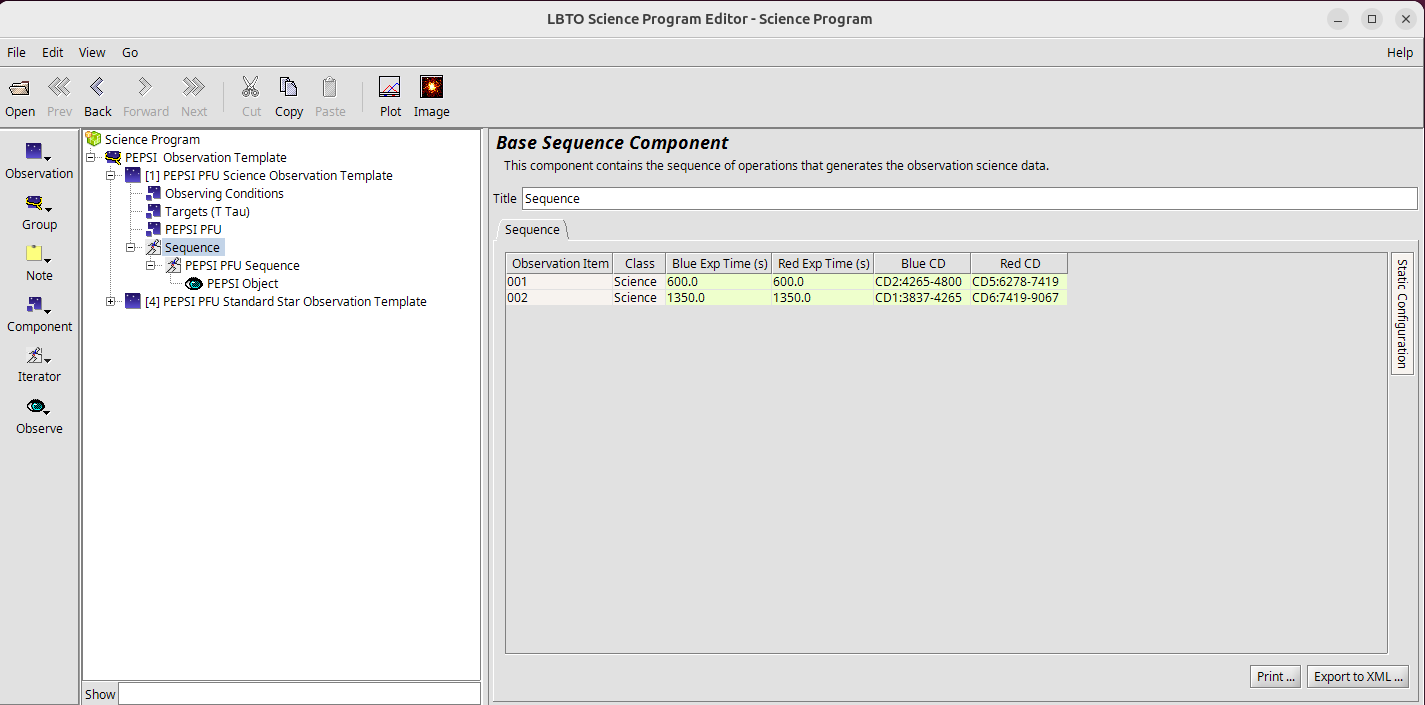
- Review and Generate Script: Once the above has been complete, the Sequence Element: can be used to review instrument and telescope changes.
Instructions for generating a script from the observation are available here.