
Get Calibrations
Instructions for finding calibrations in the LBT archive
This document provides instructions for how to locate and download the calibration files that, for a given set of LBT science files found in the archive, can be used for the data reduction.
- Steps for retrieving calibration files
- Identifying which calibrations go with which science files
- Caveats
Steps for retrieving calibration files:
- Bring up the LBTO archive portal: http://archive.lbto.org
- Perform the search that finds the science files for which you wish to obtain calibrations.
- Click on the get cals button (see Fig. 1).
- This will bring up the get cals landing page (see Fig. 2).
- Click the search science button (indicated by the ‘A’ arrow in Fig. 2). This will populate the top scrolling list with the names of the science files.
- Optional: Adjust one or more of the time range values for a given calibration search by first clicking the “Custom Parameters …” button indicated by the ‘C’ arrow in Fig 2. This will pop-up a form in which the search range, given in number of days within the date of the observation, can be entered. See Fig 3.
- Click the search calibrations button (indicated by the ‘B’ arrow in Fig. 2).2
- The calibration files associated with the science files will then appear in the lower list.
- Click the download calibrations (wget) button (indicated by the ‘D’ arrow in Fig. 4).
- A file named lbto_cals_wget.txt will then appear in the downloads directory of your local computer.
- Bring up a terminal window on your local computer and cd into the directory in which you wish to store the calibration files.
- Move the lbto_cals_wget.txt file from the downloads directory into the current directory.
- Type: wget -i lbto_cals_wget.txt.
- This will download all calibrations into the current directory.
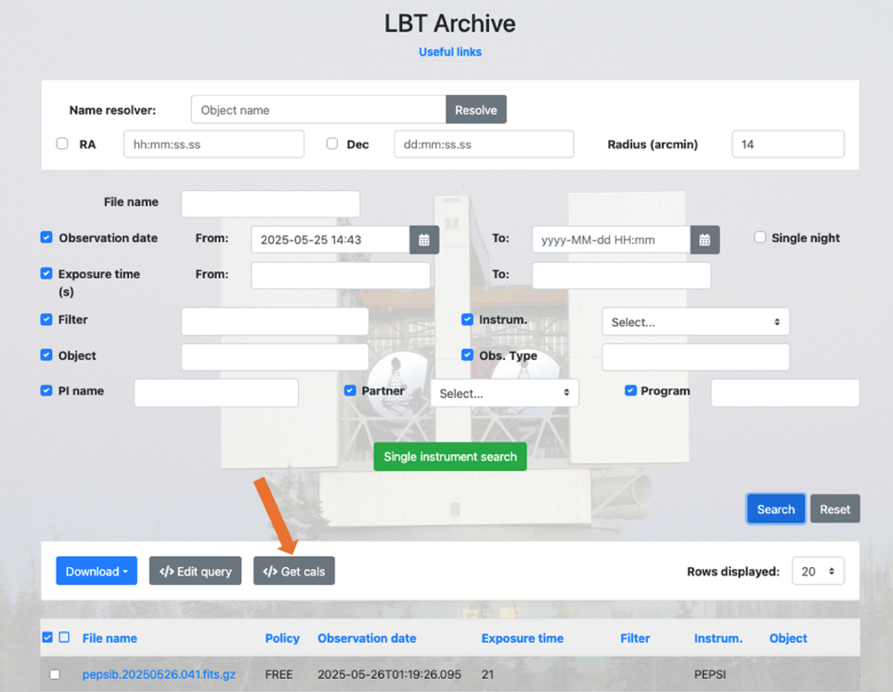 Figure 1: Screenshot of the archive portal showing the new get cals button, indicated by the red arrow.
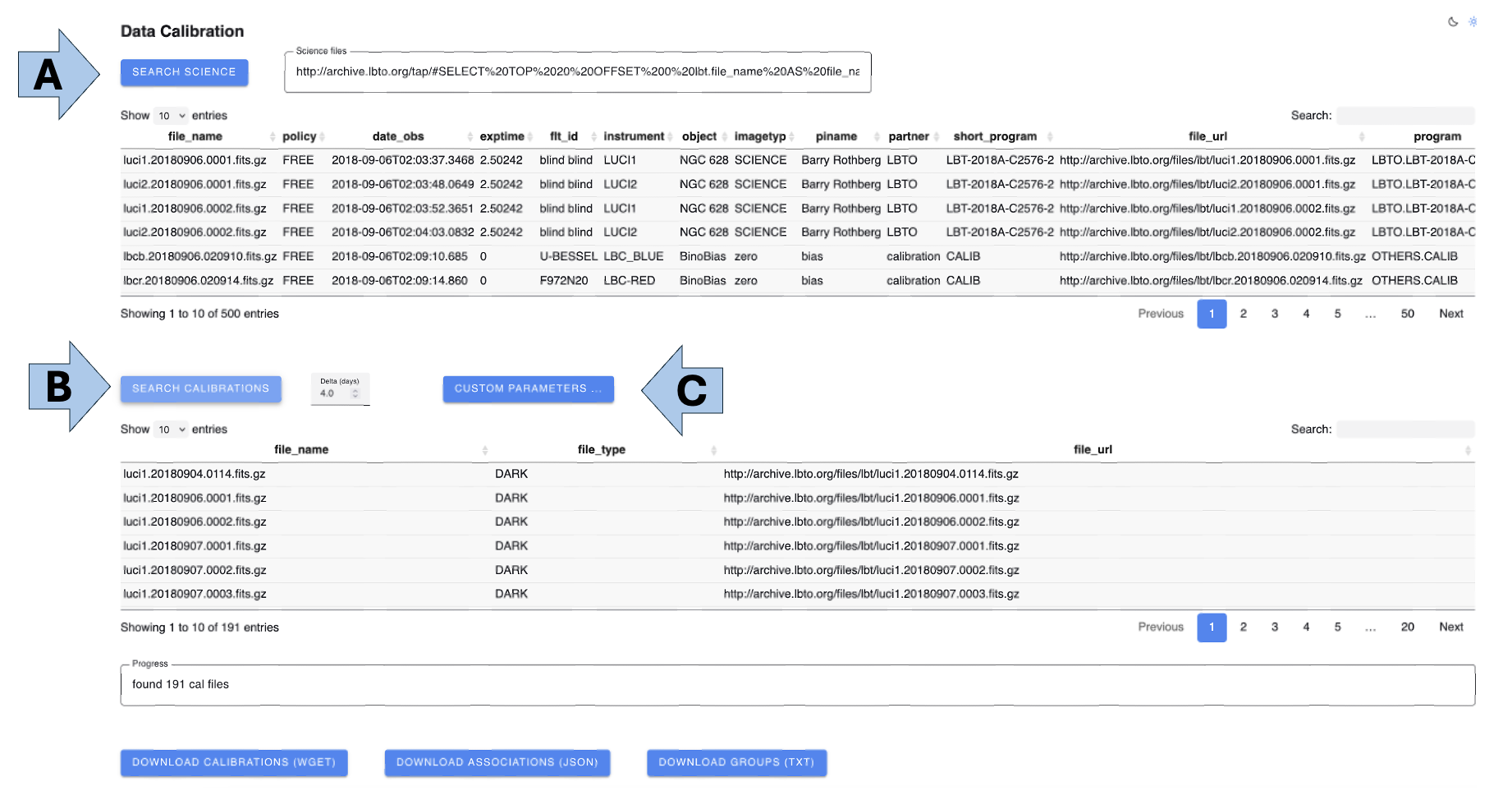
Figure 2: Screen shot of the landing page that appears after the user has selected the get cals button shown in figure 1. The search science button (indicated by the ‘A’ arrow) populates the top scrolling list with the names of the science files. Clicking the search calibrations button (indicated by the ‘B’ arrow) finds calibrations associated with science files and displays them in the bottom scrolling list.
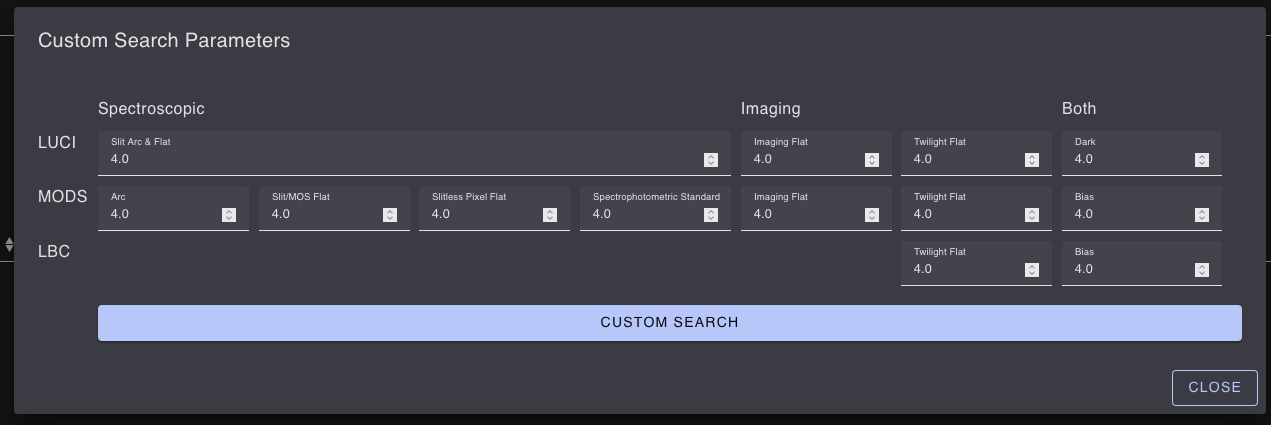
Figure 3: Screen shot of the Custom Search Parameters page.
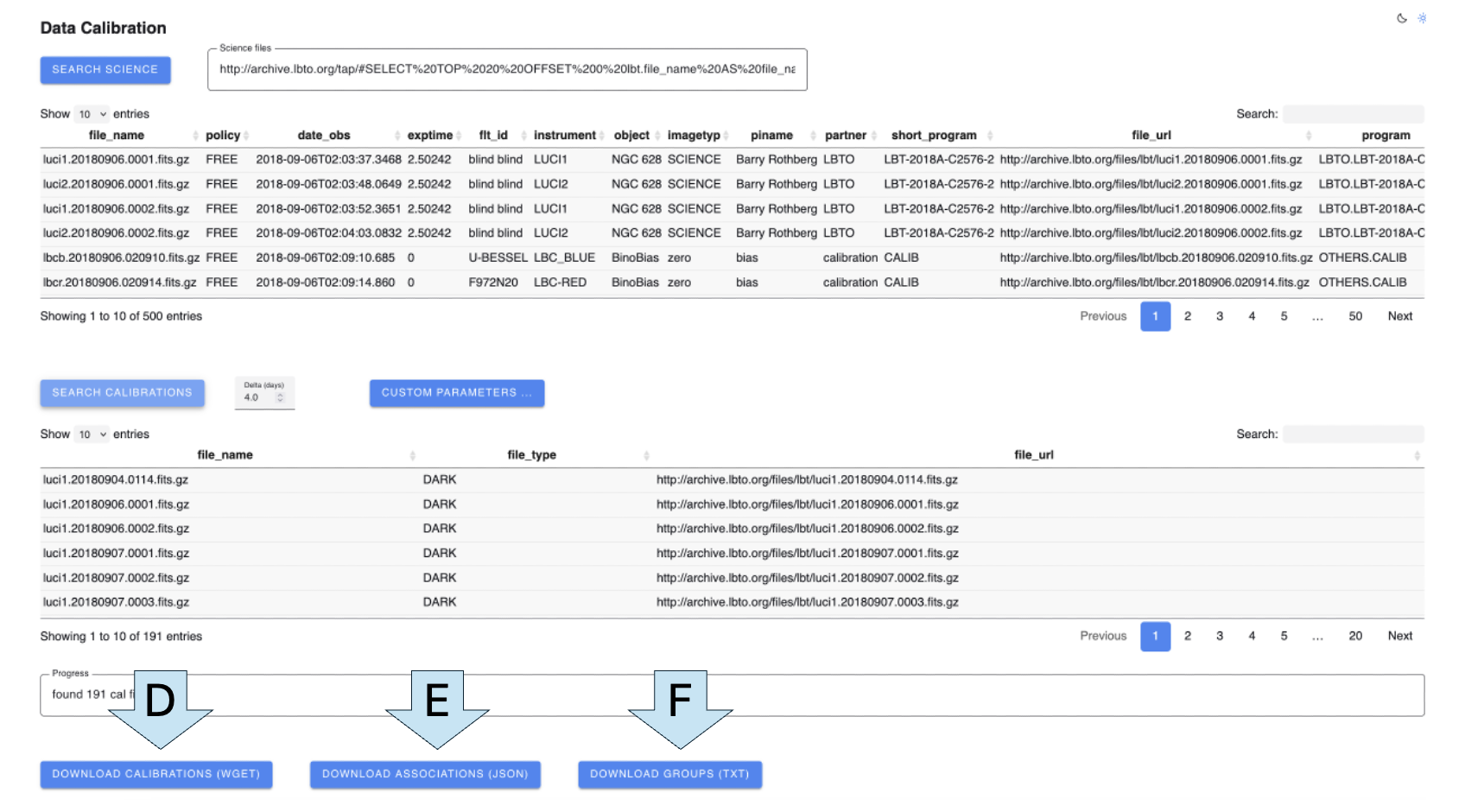
Figure 4: Screenshot of the get cals landing page after the calibration files have been found and appear in the bottom scrolling list. Clicking on the download calibrations (wget) button (indicated by the ‘C’ arrow) downloads a batch file onto the user’s computer that can be passed to the wget command (with the ‘-i’ option) to download the fits files onto the user’s local storage.
Identifying which calibrations go with which science files:
To learn which calibration files go with which science files, click the Download Associations (JSON) button (indicated by the ‘E’ arrow in Fig.4). A file named lbto_cals_associations_json.txt will then appear in the downloads directory of your local computer. For each science file, the list of calibrations for that file are listed, organized by type. The Download Groups button (see arrow ‘F’ in figure 4) provides information similar to the JSON file, but is more succinct; especially for cases when calibrations are being found for a large number of science files. The file returned by the Download Groups button is called lbto_cals_groups.txt. This file groups together all science files for which a given set of calibration files will apply and is therefore more readable and shorter than the JSON file.
Caveats:
- Some searches rely on the extended_imagetype classification made in the archive (e.g. SLIT FLAT, SLITLESS FLAT). Those searches may miss some calibration files, particularly older ones before 2018 (when the archive added these classifications). It should be possible to retroactively classify all calibrations, and doing this is an open action item.